
Add and invite riders
A rider can only use the app after the store adds them. Riders are managed in Logistics → Delivery → Riders.
Add a rider
- Click Add rider.
- Fill in:
- Name and Phone (with country code, for example +91 98765 43210; a 10-digit Indian number also works). Each phone number belongs to one rider in your store.
- Works as: Staff, Freelancer or Vendor's rider. It is a label for your records: every rider delivers your store's orders under the same rules.
- App language: English or हिन्दी. The rider can change it later in the app.
- Vehicle (Motorbike, Scooter, Bicycle, Car, Van, On foot or Other) and Vehicle number. Customers see the vehicle type on the tracking page, never the number.
- Cash limit (optional): a rider holding this much cash on delivery gets no new cash orders until they hand cash in. Empty means no limit.
- Home outlet and Zones, from your Hyperlocal Delivery outlets and areas. Offers reach riders whose zones cover the address; a rider with no zones gets offers for every address.
- Click Save and invite.
Invite the rider
The invite window shows two QR codes side by side:
- 1. Install the app: the CartWhizz Delivery download for Android, with its version and Open the download link.
- 2. Scan to join: the store invite, with the Invite code, the invite link (with a copy button) and when it expires.
To send it, click Send by WhatsApp or Send by SMS: the message has a greeting, the install link and the join link with the code. The rider can also scan both codes from your screen.
The invite works once, and both it and the install link expire after 48 hours. Each time you click Invite on a rider, new links are made and the previous invite stops working. If the window says the app is not available to download yet, ask CartWhizz support for it; the invite still works once the rider has the app.
What the rider does
- Scans 1. Install the app (or opens the install link from the message) and installs CartWhizz Delivery. The phone asks once to allow installs from the browser or WhatsApp; they allow it and tap Install.
- Opens the app, picks English or हिन्दी and taps Scan store invite, then Allow camera, and points the camera at 2. Scan to join. On a phone with the app installed, the invite link opens the app and joins too.
- Reads Before you start and taps I understand, continue.
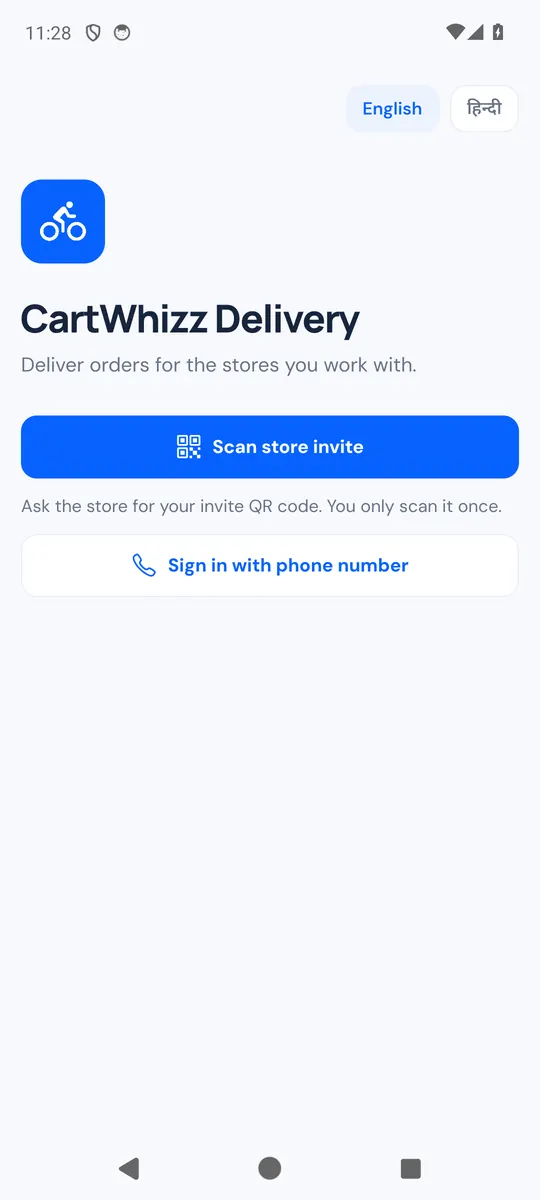
Later, the rider signs in with Sign in with phone number: the store's name or address, their phone number, and the code they receive. This only works for the phone number you added. See The rider's day.
Until the rider joins, the Riders list shows Not joined yet.
Look after your riders
The Riders list shows each rider's Duty (on or off), Active tasks, Cash in hand and Last seen. Click a rider to see their details, today's figures (Assigned today, Delivered today, Failed today), the last 7 days, Recent tasks and their Cash ledger.
Each rider's menu has:
- Edit: change any detail. Changing the phone number signs the rider out of the app.
- Invite: a new invite, for a new phone or after Log out everywhere.
- Suspend: logs them out and stops all work until you Reactivate them.
- Log out everywhere: signs them out of every phone; they join again with a new invite.
- Delete: removes the rider for good. Their delivery and cash records are kept. A rider with open tasks or cash in hand can't be removed: reassign the tasks and settle the cash first.
Adding, inviting and suspending riders needs the manage_riders permission.