Create orders, drafts, returns and refunds
Create an order
Use this for phone, WhatsApp or counter sales.
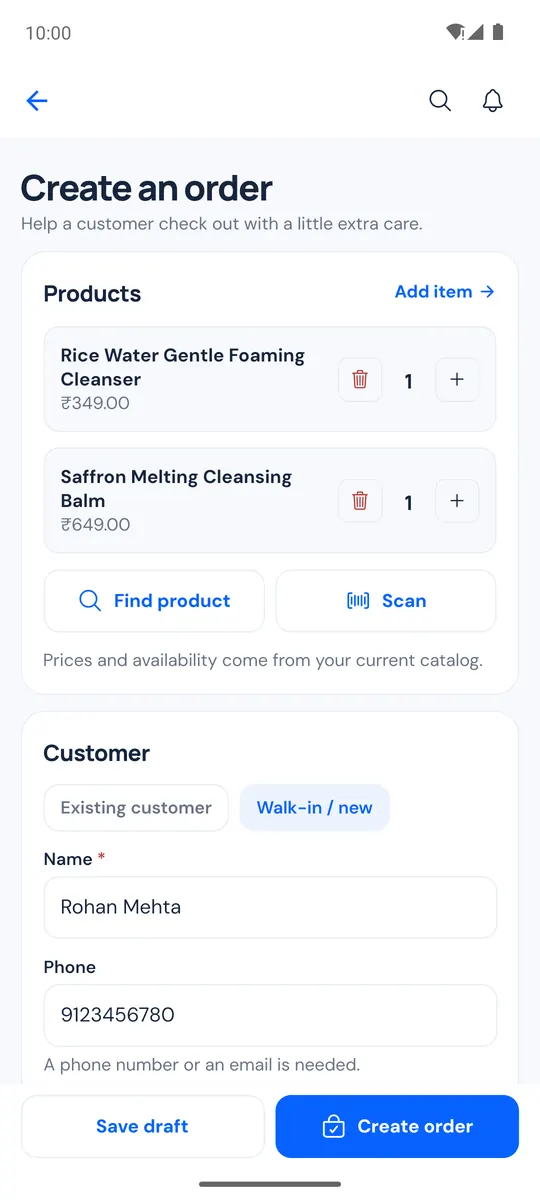
- Orders → Create order.
- Add products: Add item, then search with Find product, or tap Scan to scan a barcode. Use the steppers to change quantities.
- Choose the customer: Existing customer, or Walk-in / new with a name, phone and email.
- Delivery: keep Deliver to an address on and fill in the address, or switch it off for a counter sale or pickup. Add a Shipping charge if needed.
- Payment: pick the Payment method, and Awaiting payment or Record as paid.
- Add an Internal order note if you like, then tap Create order and confirm. Save draft keeps it as a draft order instead.
Draft orders
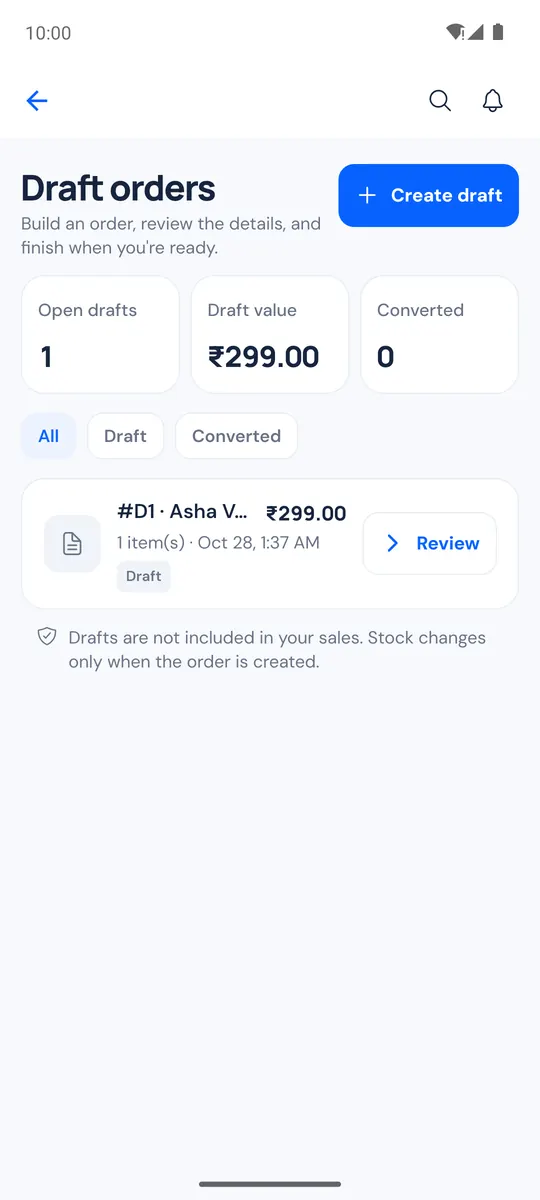
Orders → Draft orders lists drafts with Open drafts, Draft value and Converted. Create draft starts a new one. Open a draft to Review and turn it into an order, or delete it. A converted draft opens its order.
Refund an order
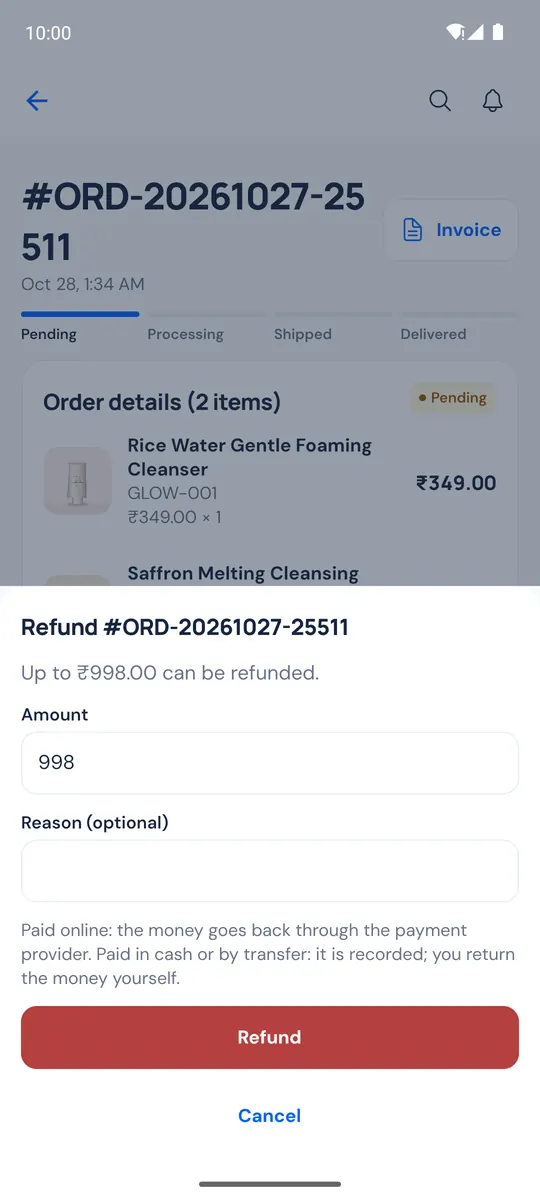
- Open the order and tap More actions → Refund (or Refund in the Payment section).
- Check the Amount (it starts at the most you can refund), add a reason (optional) and tap Refund. For online payments the money goes back through the payment provider; for cash or bank transfer the refund is recorded and you return the money yourself.
Orders → Refunds lists every refund, manual or through the payment gateway.
Returns
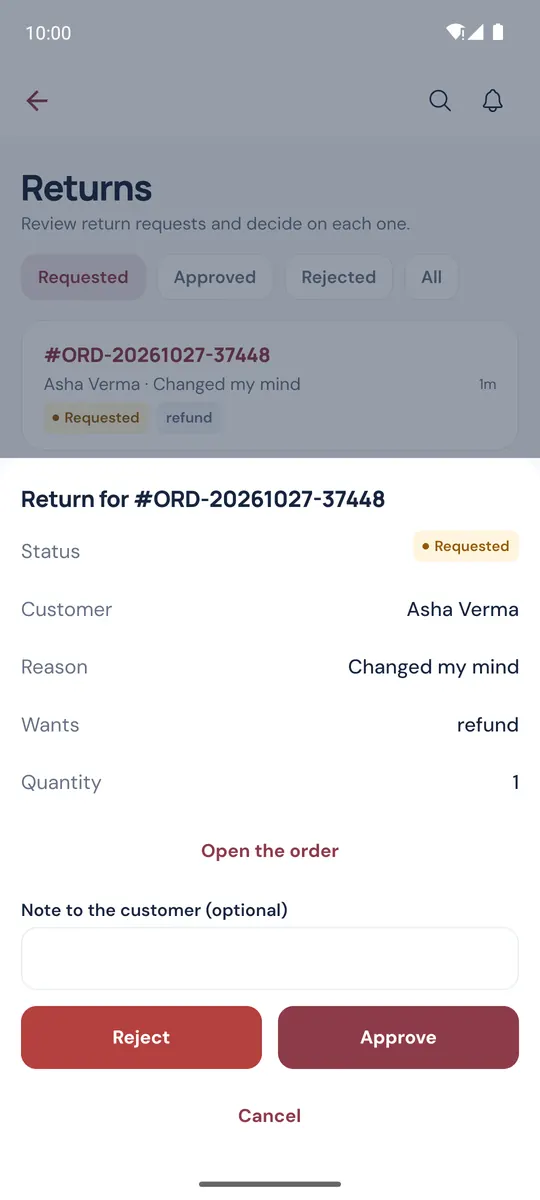
Orders → Returns lists return requests from your customers (it needs the Returns module), filtered Requested, Approved, Rejected or All. Open a request to see the reason, what the customer wants, the quantity and the refund. Add a Note to the customer (optional) and tap Approve or Reject. Open the order jumps to the order.