
Home, search and switching stores
The app has five tabs at the bottom: Home, Orders, Products, AI and More.
Home
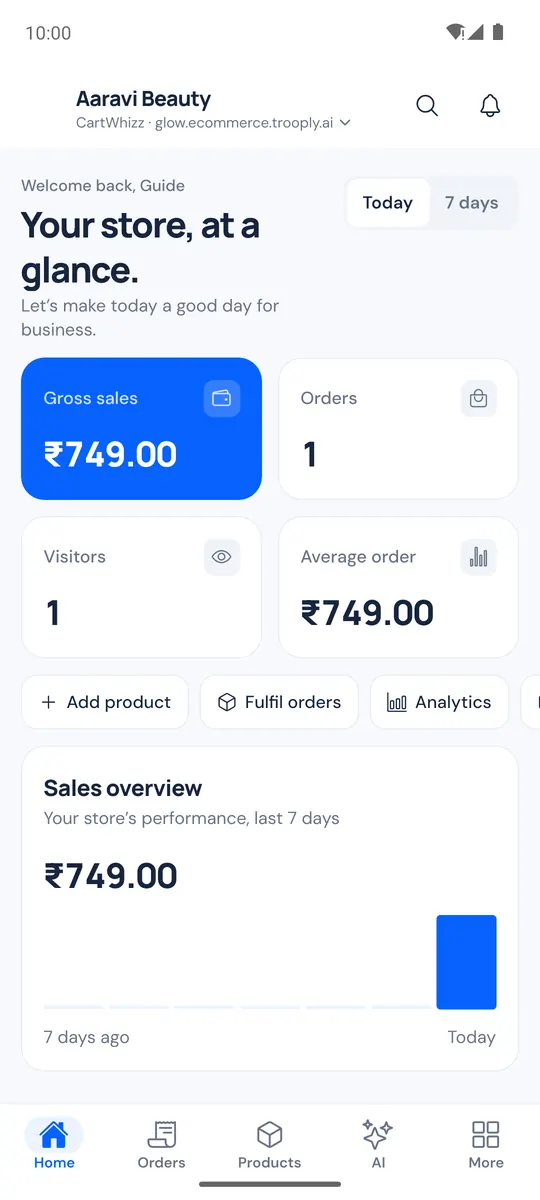
Home shows your store at a glance:
- Today | 7 days — switch the period for the tiles: Gross sales, Orders, Visitors and Average order.
- Quick actions: Add product, Fulfil orders (orders waiting to ship), Analytics, Scan (find a product by barcode), Share (send your store link) and Open (your store in the browser).
- Sales overview, a small chart of the period.
- Needs your attention — Waiting to ship, Low stock, Return requests and Failed payments. Tap a card to open the list.
- Best sellers, Recent orders (View all), and your Setup checklist while setup steps are left.
Pull down to refresh.
Search and the customer inbox
The top bar on every tab has a search icon and an inbox icon.
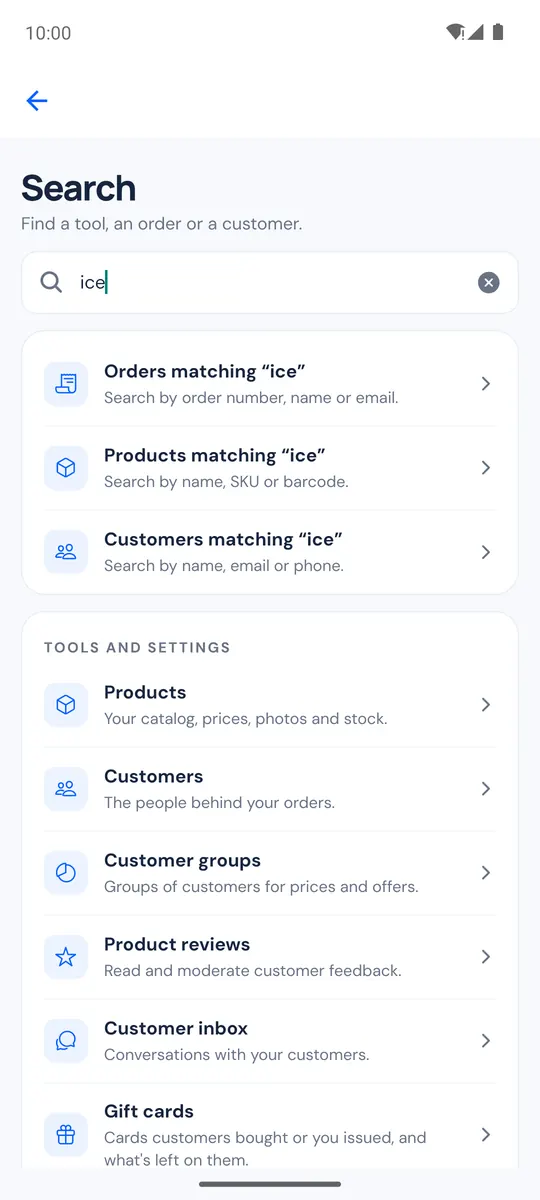
- Search finds a tool, an order or a customer: type an order number, a name or a page such as "coupons".
- The inbox icon opens Messages, your live chats with customers.
More than one store
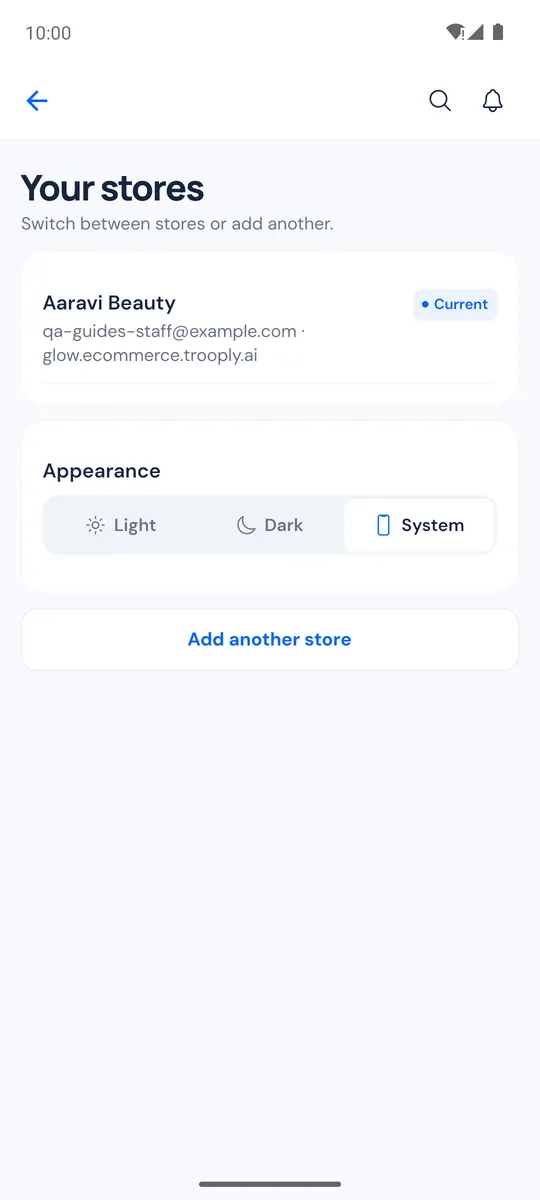
Tap the store name at the top left to open Your stores. Tap a store to switch, or Add another store to sign in to one more. Each store keeps its own sign-in. Tapping a notification switches to its store first.
Android home-screen widget and shortcuts
- Widget — add CartWhizz: today from your phone's widgets list to see today's sales, orders and orders to ship. It shows the figures Home last loaded, so open the app now and then to refresh it.
- Shortcuts — long-press the app icon for Scan product, Add product and Orders to ship.