
Products and inventory
Browse products
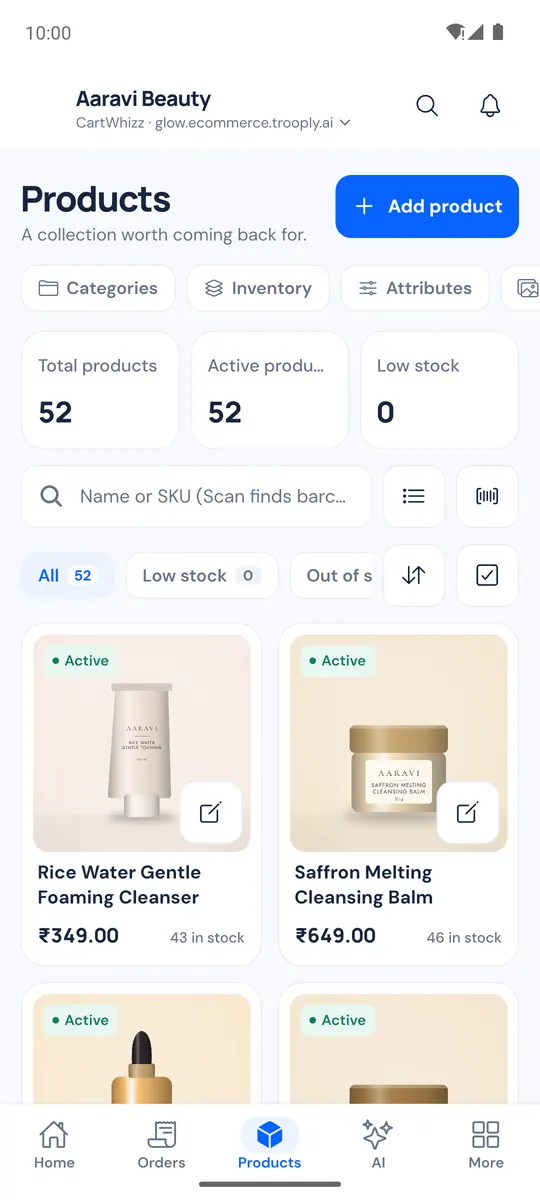
Open the Products tab.
- Filter All, Active, Hidden, Low stock or Out of stock, and sort by Recently updated, Name A–Z, price or Stock: lowest first.
- Search by name or SKU, or tap the scan button to find a product by its barcode.
- Quick edit changes a product's price and stock without opening it.
- Select several products to Show in store, Hide from store or change Stock (Set to, Add or Remove) for all of them.
- The chips at the top open Categories, Inventory, Attributes, Locations, Purchase orders and Media library, when your store has them.
Add or edit a product
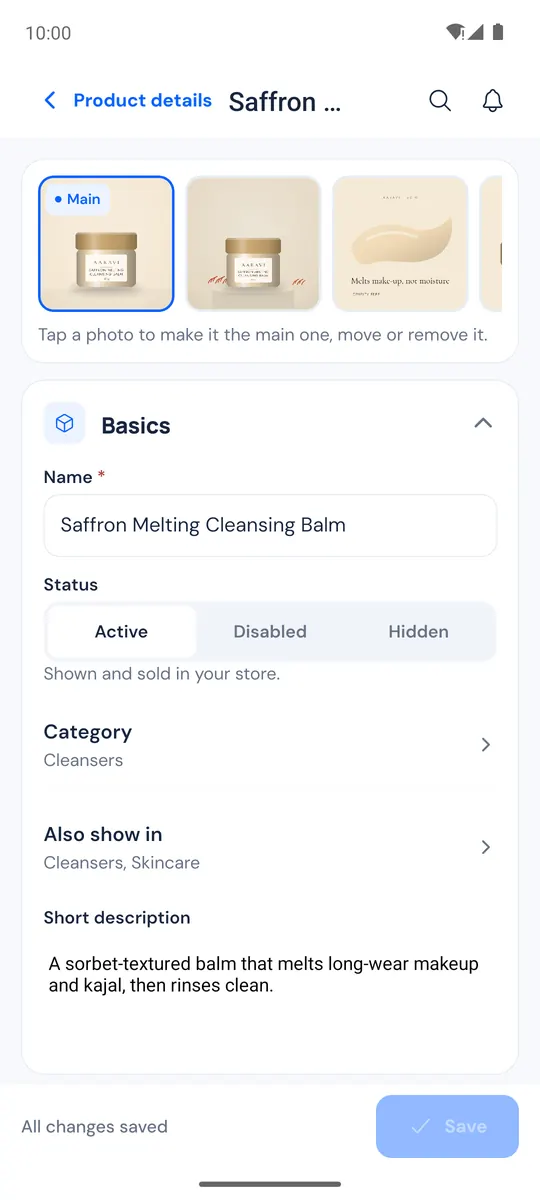
Open a product to see its Product details: photos, price, stock, search listing and more. Tap Edit to change it.
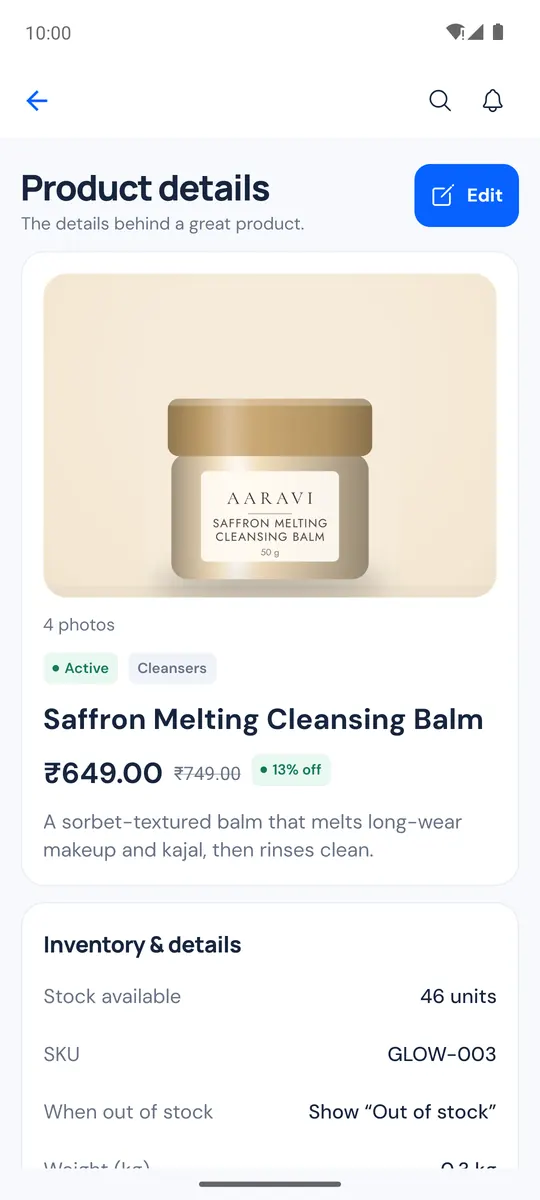
- Tap Add product, or open a product and tap Edit.
- Add photos: Take photo or Choose photos. Tap a photo to make it the main one, move it, or remove it.
- Under Basics, enter the name, set the status (Active, Disabled or Hidden), choose the category and write a short description.
- Open the other sections as needed: Pricing, Inventory, Availability, Shipping, Variants, Tags, Search listing and More. The long Description with rich formatting is edited on the web.
- Tap Save.
More in the editor:
- Fill in with CartWhizz AI writes the search listing (SEO title and description) for you.
- Add options (size, colour…) creates variants: add an option such as Size, add its values, then Save and make variants. Edit all variants changes price and stock of every variant in one list.
- Stock by warehouse, Attributes, Options (engraving, gift wrap…), Quantity prices, Related products, Required products, Videos, Files to download (upload a PDF or ZIP for a downloadable product) and Translations — each when your store uses it.
- Preview in your store, Duplicate product and Delete product.
The app keeps an unsaved draft: if you leave by accident, it offers Restore your unsaved changes? next time.
Scan a barcode
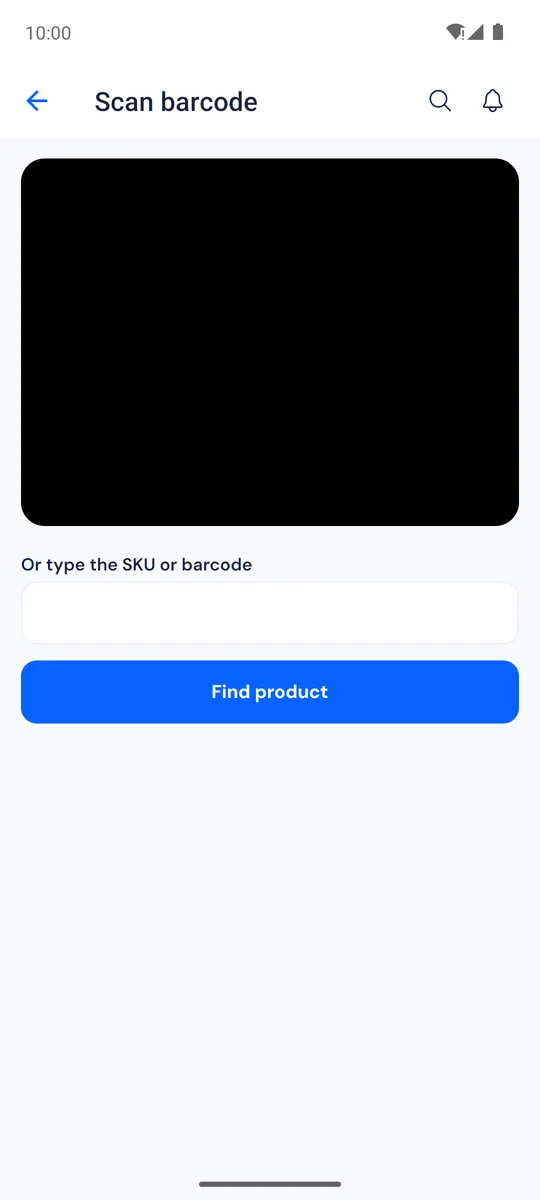
Tap Scan on Home or the scan button on Products, and tap Allow camera to scan. The app reads EAN, UPC, Code 128, Code 39 and QR codes and opens the matching product. No camera? Type the SKU or barcode under Or type the SKU or barcode and tap Find product.
Inventory and categories
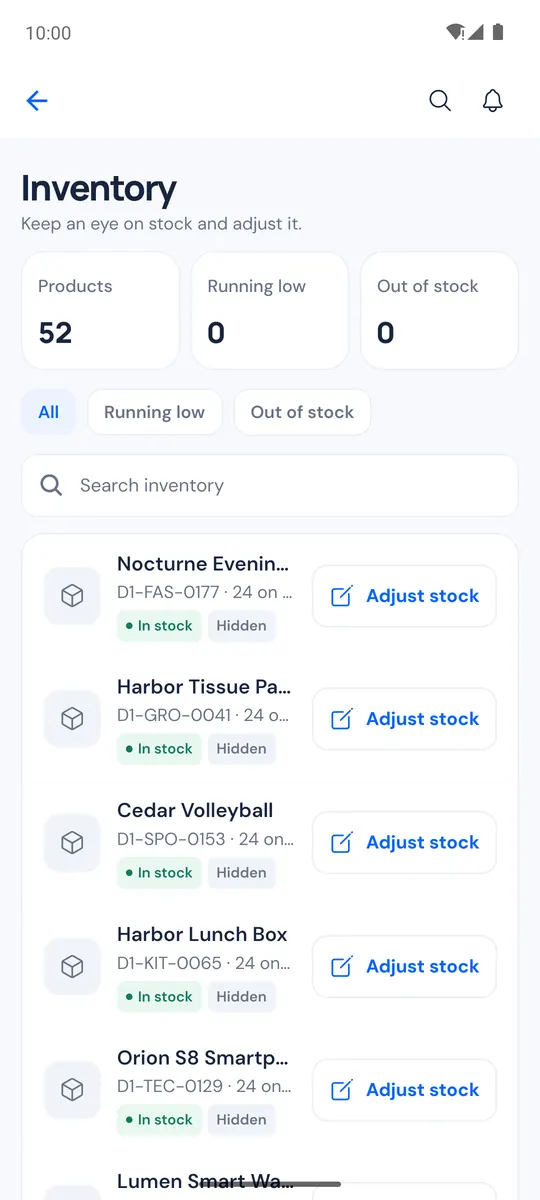
- Inventory lists products Running low or Out of stock. Adjust stock corrects a count; Adjustment history shows past changes when you use warehouses.
- Categories — Add category, edit, choose the parent, move up or down, or delete.
- Media library — Add photos or Take photo; tap an image to open its product or delete it.