
Settings, notifications, appearance and help
The More tab lists everything else, grouped as Order management, Catalog & inventory, Customers & service, Growth & insights, Storefront, Business & preferences, Marketplace (marketplace stores) and You & help. Type in Find a tool or setting to jump to one.
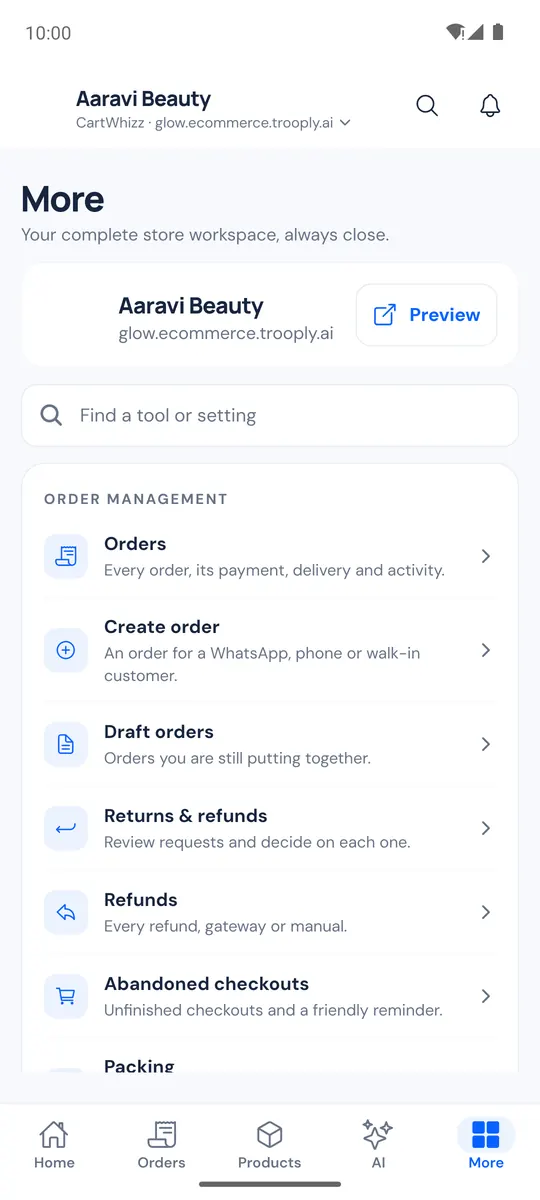
Some entries open the web admin inside the app (they say on web), for example themes, store menus, tax rules and inviting staff.
Store settings
More → Store settings: change the logo, store name, email, phone and address; switch on Store closed (vacation mode) with a message; switch payment and shipping methods on or off; and see your plan (Manage plan on web).
Notifications
More → Notifications chooses what reaches your phone: new orders, cancelled orders, return requests, low stock, failed payments, delivery problems and customer messages (the list depends on your store). Owners also see Push notifications for this store to switch them off for everyone. Notifications show only the order number and amount. Tap a notification to open the order, product or chat.
If the app says notifications are off, tap Turn on notifications and allow them in Android settings.
Light and dark appearance
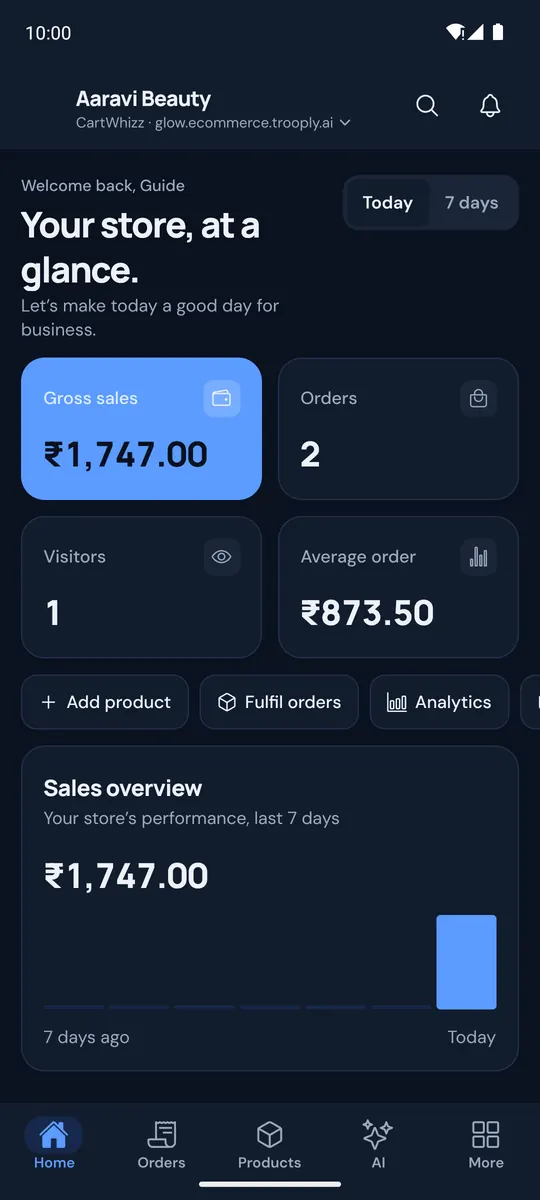
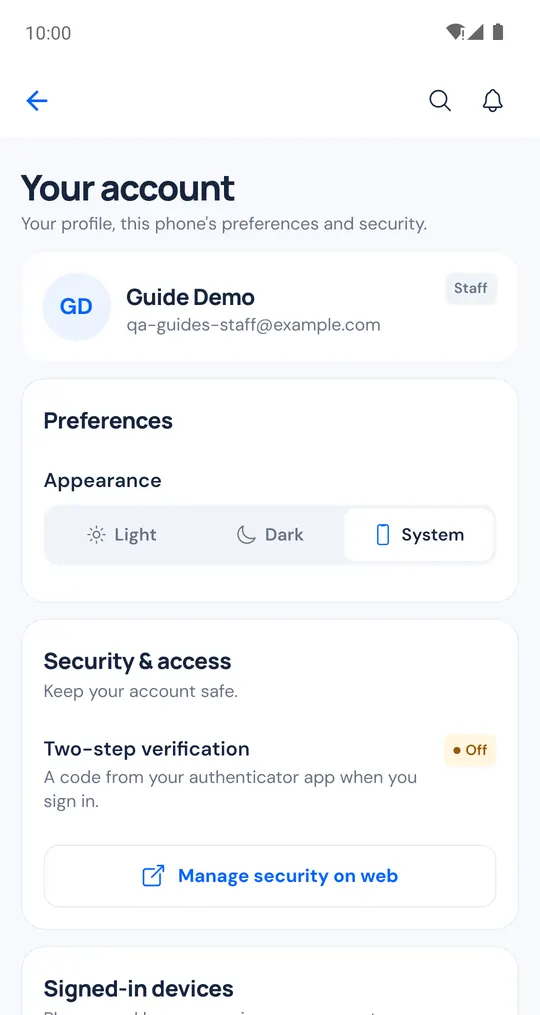
More → Your account → Appearance (also on Your stores): Light, Dark or System to follow your phone.
Your account
More → Your account shows your profile, Appearance, Face ID or fingerprint unlock (on phones that have it), whether two-step verification is on (Manage security on web) and your signed-in devices.
Report an issue
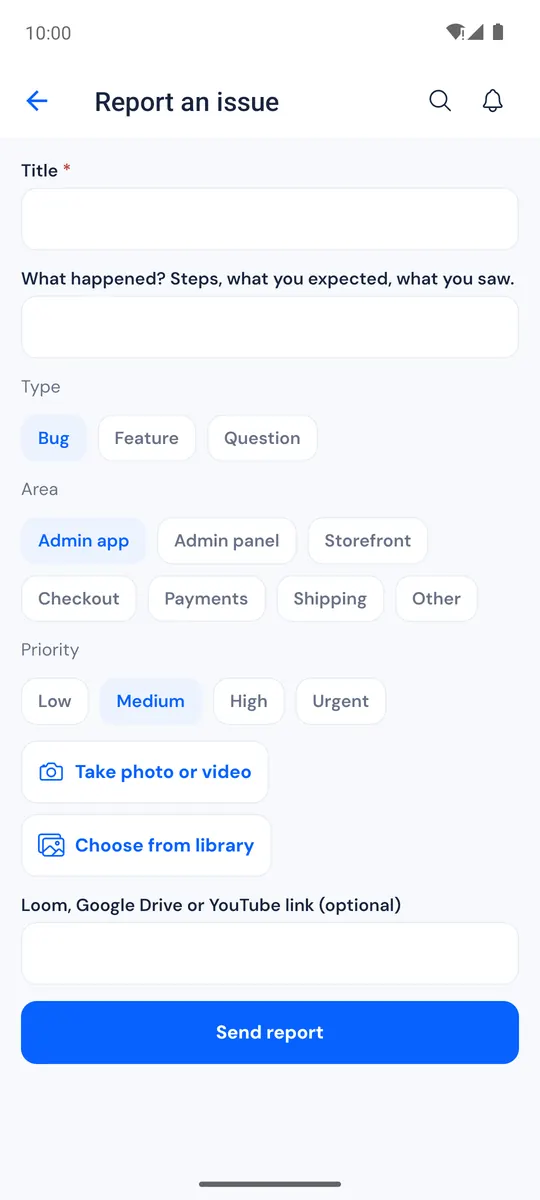
More → Issues keeps track of problems and requests, filtered Open, Ready for testing, Closed or All. Tap Report, give it a title and description, choose the type (Bug, Feature or Question), the area and priority, add a photo or video (Take photo or video or Choose from library) and tap Send report. Follow the replies and status on the issue.
Help and support
- More → CartWhizz support is a live chat with the CartWhizz team.
- More → Help & support opens the help centre and shows your app version.
- More → Setup checklist shows the setup steps left.
Log out is at the bottom of More.