
Install and sign in
The CartWhizz Admin app runs your CartWhizz store from an Android phone. It signs in with the same staff account you use on the web admin, and shows only what your role allows: a staff member without the orders permission, for example, doesn't see the Orders tab.
Install the app
- On your Android phone, open the CartWhizz downloads page.
- Download CartWhizz Admin and open the downloaded file.
- The first time, Android asks you to allow installs from your browser. Allow it, then tap Install.
The app is not in the Google Play Store yet, and there is no iPhone version yet. To update, download the newer version from the same page and install it over the old one; you stay signed in.
Sign in
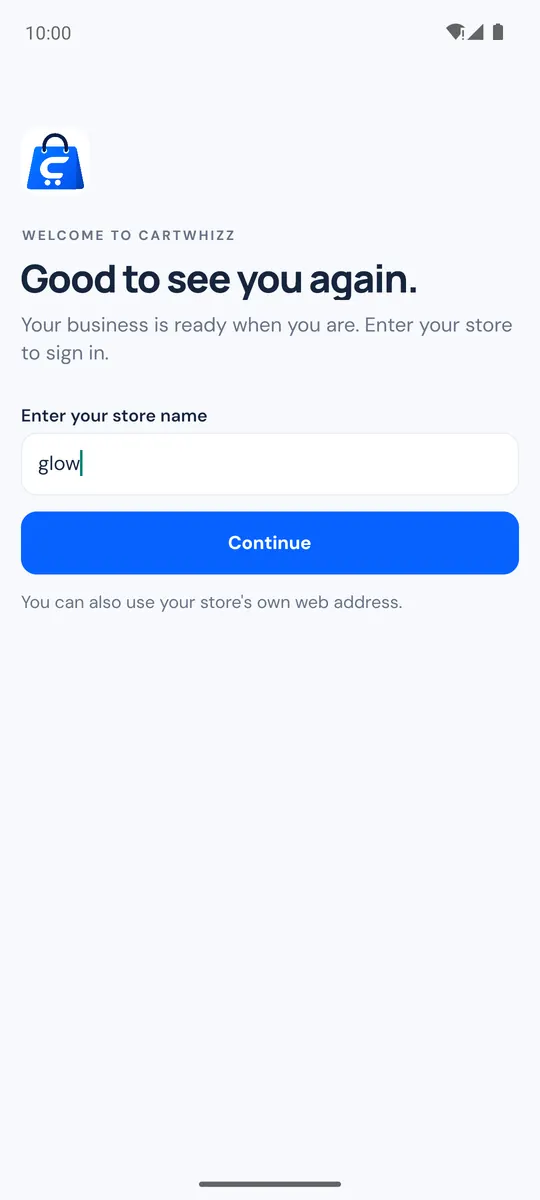
- Open the app and type your store name (for example
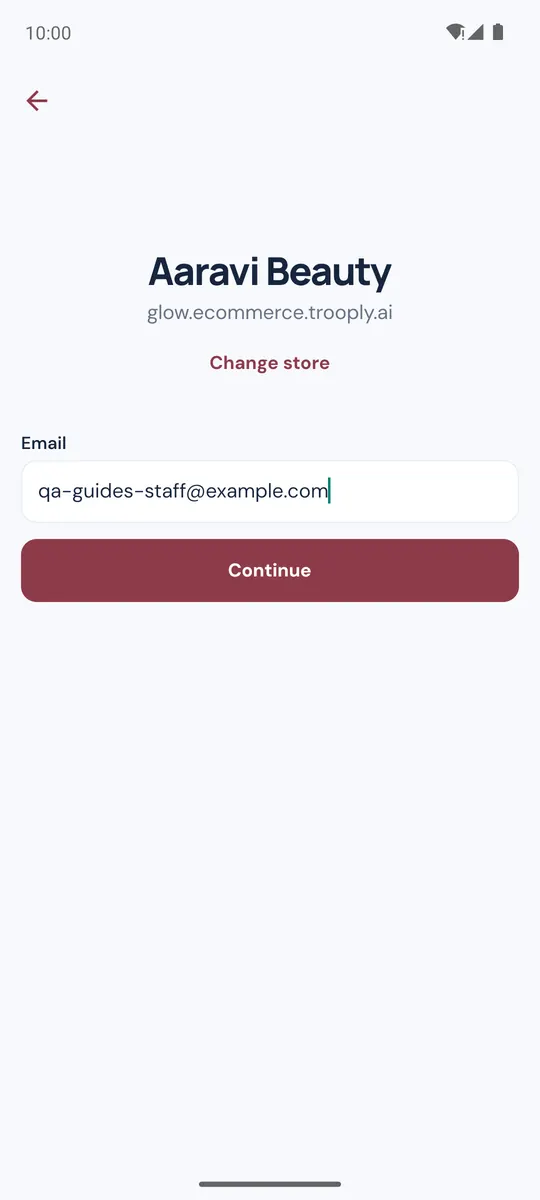
mystoreormystore.cartwhizz.com) under Enter your store name. Your store's own web address works too. Tap Continue. - Check the store name, enter your Email and tap Continue. If it's the wrong store, tap Change store.
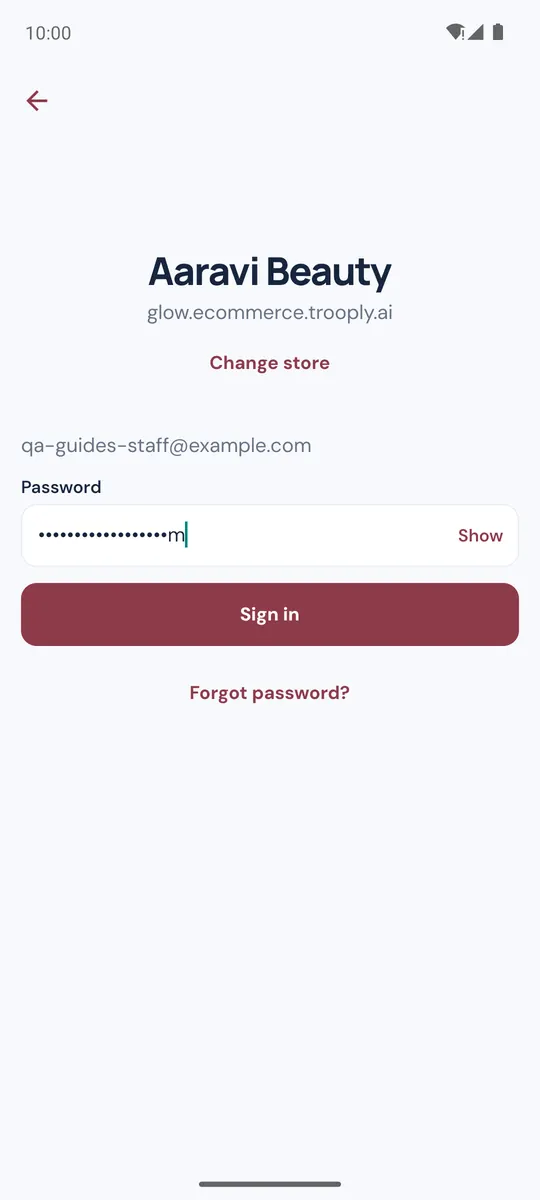
- Enter your Password and tap Sign in. Show reveals what you typed; Forgot password? emails you a reset link.
Continue with Google appears under the email field when your store has Google sign-in switched on.
Two-factor verification
If your account uses two-step verification, the app asks for the Verification code: the 6-digit code from your authenticator app, or the code sent to your email or phone (Send a new code sends another). Tap Verify. Two-step verification is set up on the web admin; if your store requires it and you haven't set it up yet, do that on the web first.
Fingerprint or face unlock
After your first sign-in, if your phone has a fingerprint or face unlock set up, the app asks Use Face ID or fingerprint? Tap Turn on to lock the app whenever it has been in the background for more than a minute. Change it later in More → Your account.