
Shipping, packing and delivery problems
Book a courier and print the label
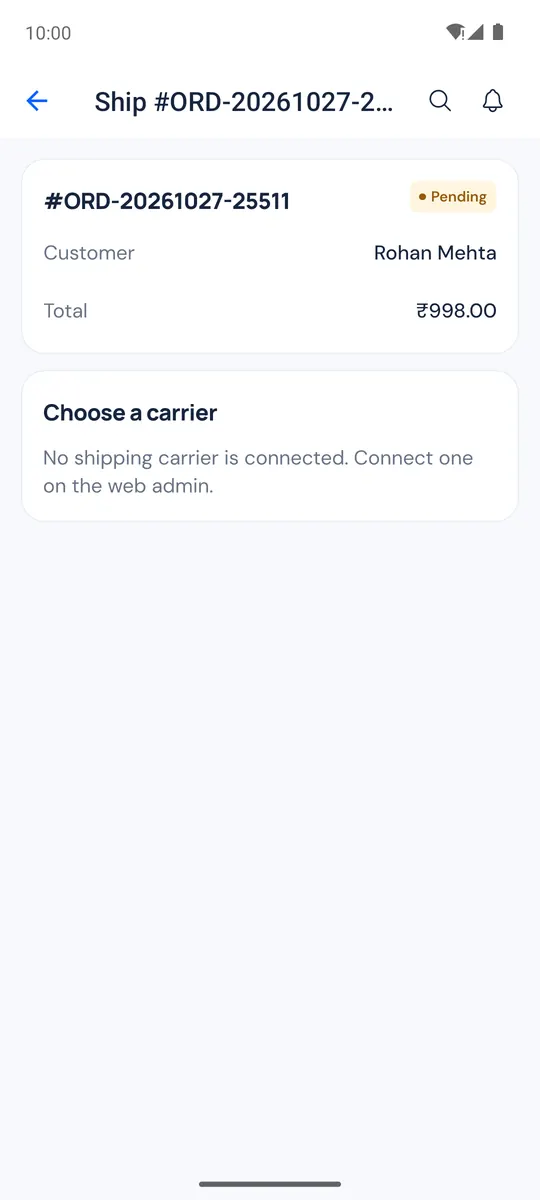
If your store has a shipping carrier connected on the web admin (for example ShipMaxx or Shiprocket):
- Open the order and tap More actions → Ship with courier · label.
- Choose a carrier, then pick a rate from the list (cheapest first).
- Tap Book and pay.
- Print label or Share label, and Print manifest or Share manifest for the pickup.
With no carrier connected, the app says so; connect one on the web admin first. Booking a courier needs the shipping permission.
Packing
More → Packing is a packing station on your phone.
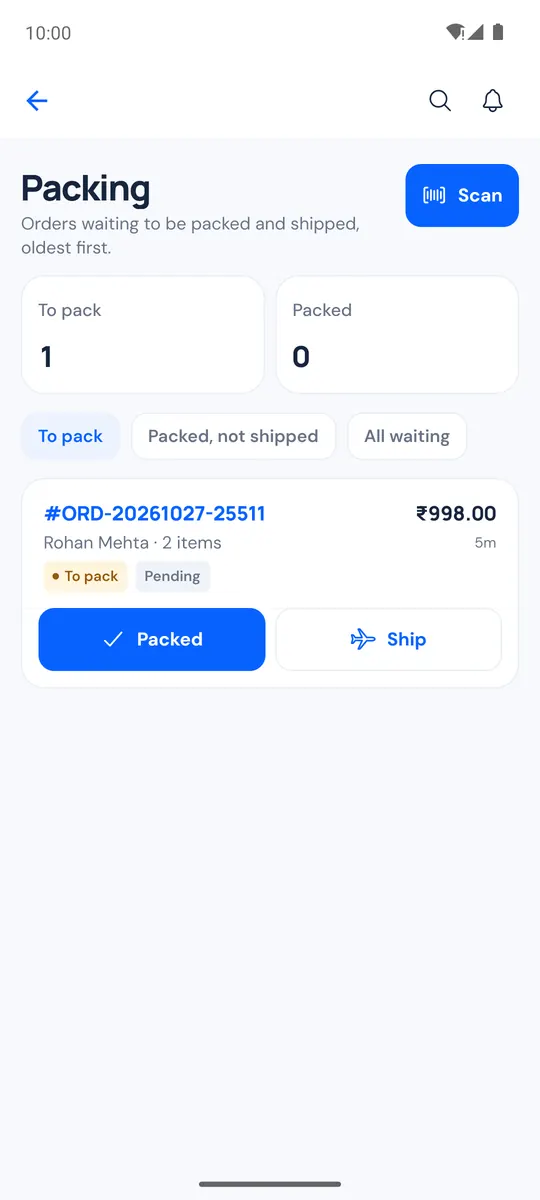
- Filter To pack, Packed, not shipped or All waiting.
- Tap Scan and scan an order number or AWB to find the order fast (Clear scan resets).
- Tap Packed when the parcel is ready (Undo if you tapped by mistake), then Ship or Label.
Shipments
Orders → Shipments lists your shipments; mark them shipped or delivered from the list.
Delivery problems (NDR)
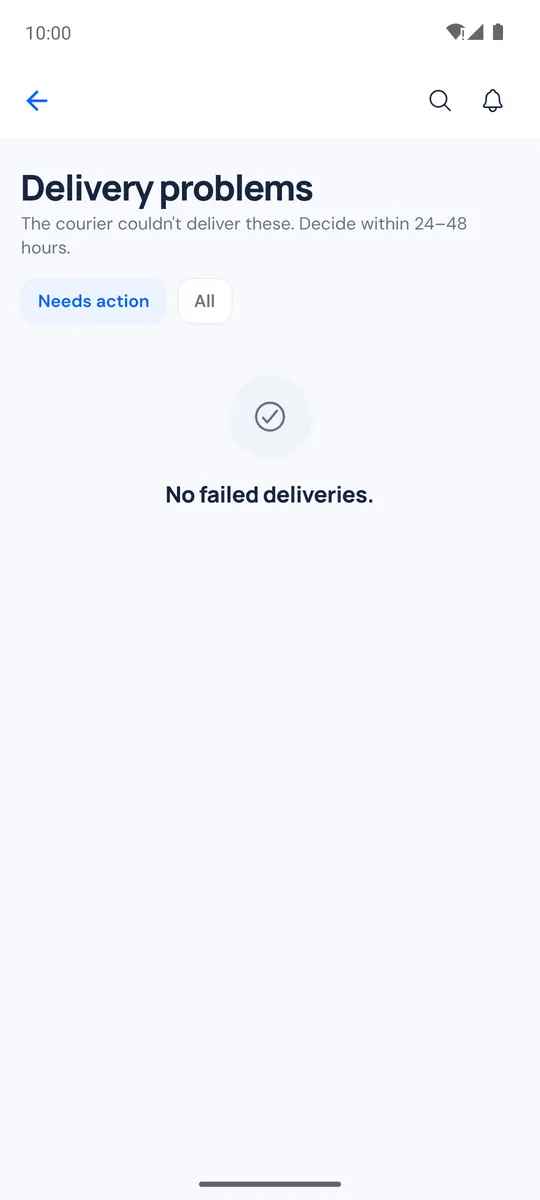
When a courier can't deliver, the order shows up in More → Delivery problems (it needs the NDR feature of a connected carrier).
- Needs action shows the ones waiting for you.
- Choose Re-attempt, Return to me, or New address to give the courier a corrected address or phone, then Re-attempt with these details.
You can get a notification for each delivery problem (see Notifications).