
Orders
Find an order
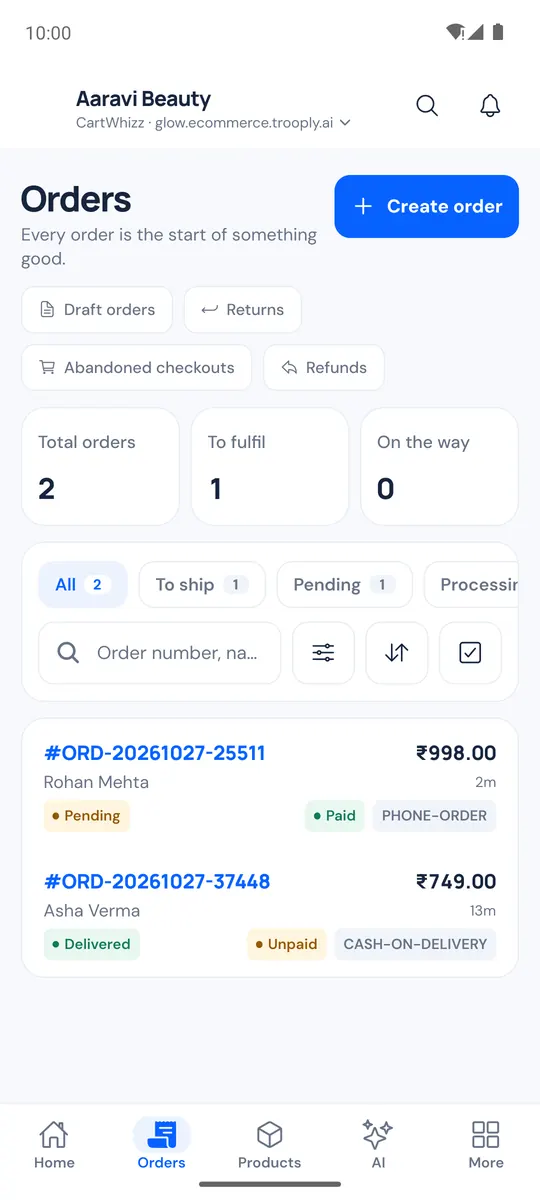
Open the Orders tab.
- The tiles show Total orders, To fulfil and On the way.
- Tap a status chip: All, To ship, Pending, Processing, Shipped, Delivered, Cancelled, Refunded or On hold.
- Search orders finds an order by number, customer name or email.
- Filters narrows by payment (Unpaid, Paid, Payment failed, Refunded) and date (Today, Last 7 days, Last 30 days). Sort by Newest first, Oldest first, Highest total or Lowest total.
- The row of shortcuts opens Draft orders, Returns, Shipments, Abandoned checkouts and Refunds (each one only if your store and role have it).
To change many orders at once, tap Select, tick the orders and tap Change status.
Work on an order
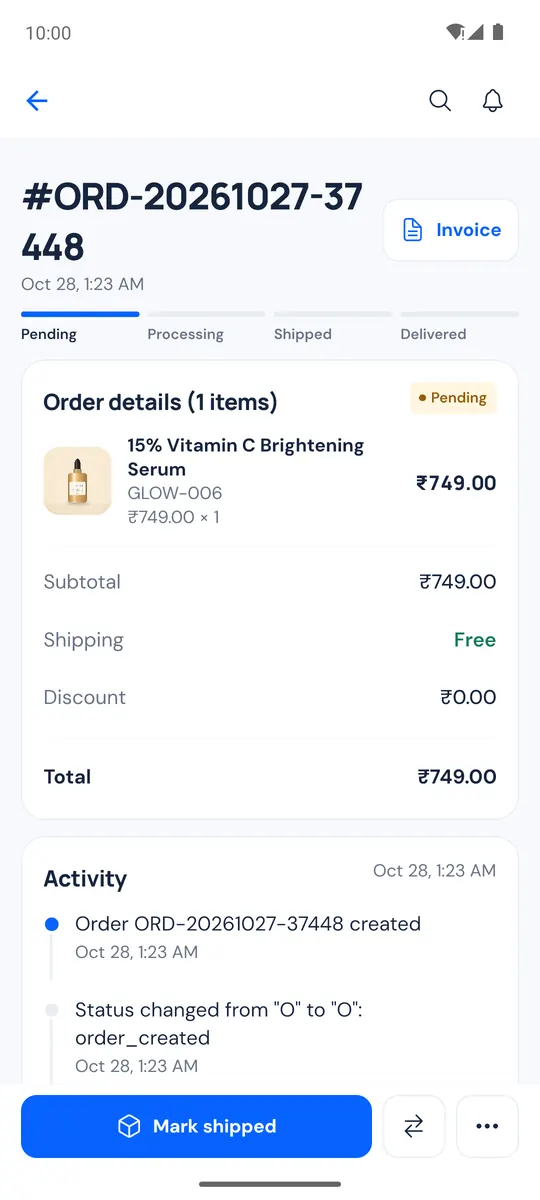
Tap an order to open it. You see its progress, the items, totals, the Activity timeline, the customer, the shipping address and the payment.
- Customer — View customer, Call, WhatsApp or Email them.
- Shipping address — Edit fixes the address.
- Invoice (top right) downloads the invoice PDF and opens your phone's share sheet, so you can send it on WhatsApp or email.
- Mark shipped — enter the Tracking number (and the carrier, optional) and tap Mark shipped.
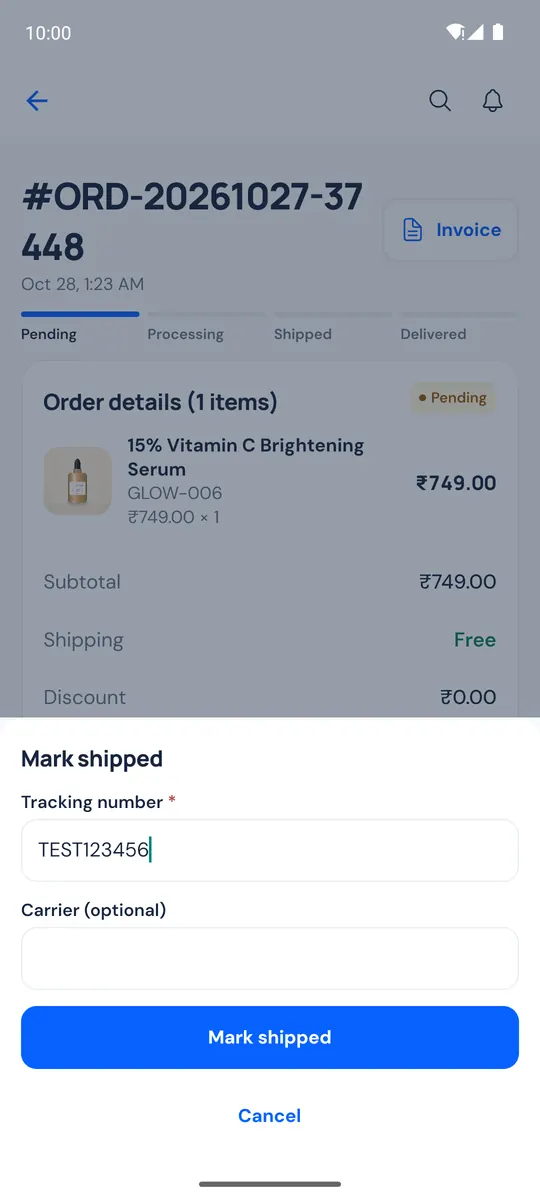
More actions
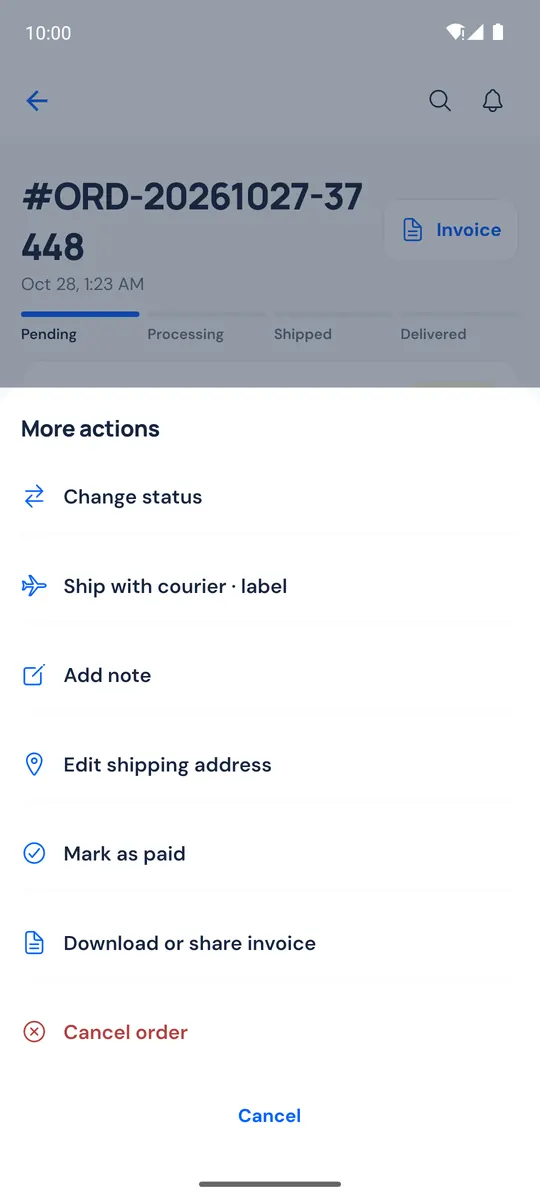
Tap More actions at the bottom for:
- Change status
- Ship with courier · label — book a courier and print the label (see Shipping)
- Add note / Edit note — an internal note on the order
- Edit shipping address
- Mark as paid — when the money arrived outside the app, for example cash on delivery
- Download or share invoice
- Refund — see Refunds
- Cancel order
If your role can only view orders, the only action is Download or share invoice.
Tap Ask CartWhizz AI on an order to ask about it in the AI chat.